
Imagine you’re going on a vacation, and you won’t be able to check your mailbox (YourEmail@example.com) for a week. You want anyone who sends you an email during this time to know you’re away and when you’ll be back. An autoresponder is like a note you leave on your mailbox that automatically sends this message to anyone who drops you a mail. Here’s how you can set this up in DirectAdmin:
Setting up Auto-Responders is quite easy and consists only of a few steps.
As a first step, log into your Direct Admin control panel. If you haven’t or don’t know how to, we have a separate article on How to log in to the DirectAdmin control panel.
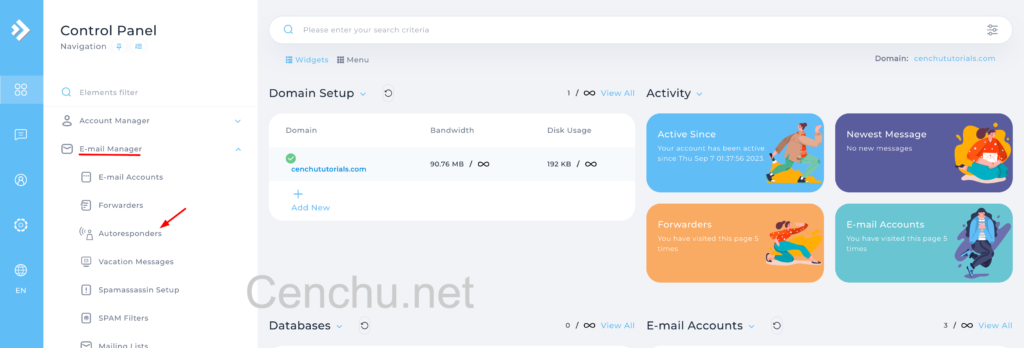
After logging in, you can find the ‘AutoResponders‘ under the ‘Email-manager‘.
Once you’re in, it shows the list of AutoResponders, if you have set any.
Click on “Create Autoresponder“, and present all to your right.

- Responder Address: The E-mail address that you want to send the auto-respond from.
- Subject-Prefix: In here, add your Mail’s subject (‘On vacation’)
- Content-Type: There are 2 options – text/plain, text/html. If you would like to configure your email with HTML, choose the second one.
- Reply-frequency: It refers to the time at which you want to send the email within. If it’s set to 2 days, the response will be sent after 2 days of receiving an email.
- Responder’s message: Your email’s subject goes in here.
After finishing writing the email, click Save.

Conclusion
Setting up an autoresponder in DirectAdmin is a straightforward way to keep your contacts informed during your absence. With just a few clicks, you ensure clear communication and manage expectations. Remember, timely responses build trust; an autoresponder is a step in that direction. Happy emailing!